
Check what updates before editing your manuscript
AMA Citations in Word With Static Lists, Fields, and Final Checks
A real two-source DOCX export shows which formatting survives, why moving a paragraph leaves its old number behind, and what to check before delivery.
An AMA citation in Word can look finished while its number is already wrong. Our two-source export kept the journal italics and reference text, but moving the references left their original labels attached. That matters when a paragraph moves earlier in your manuscript. This guide follows the actual export, a deliberately unrepaired copy, and a corrected practice document so you can see what needs checking.
Start with two checked source records
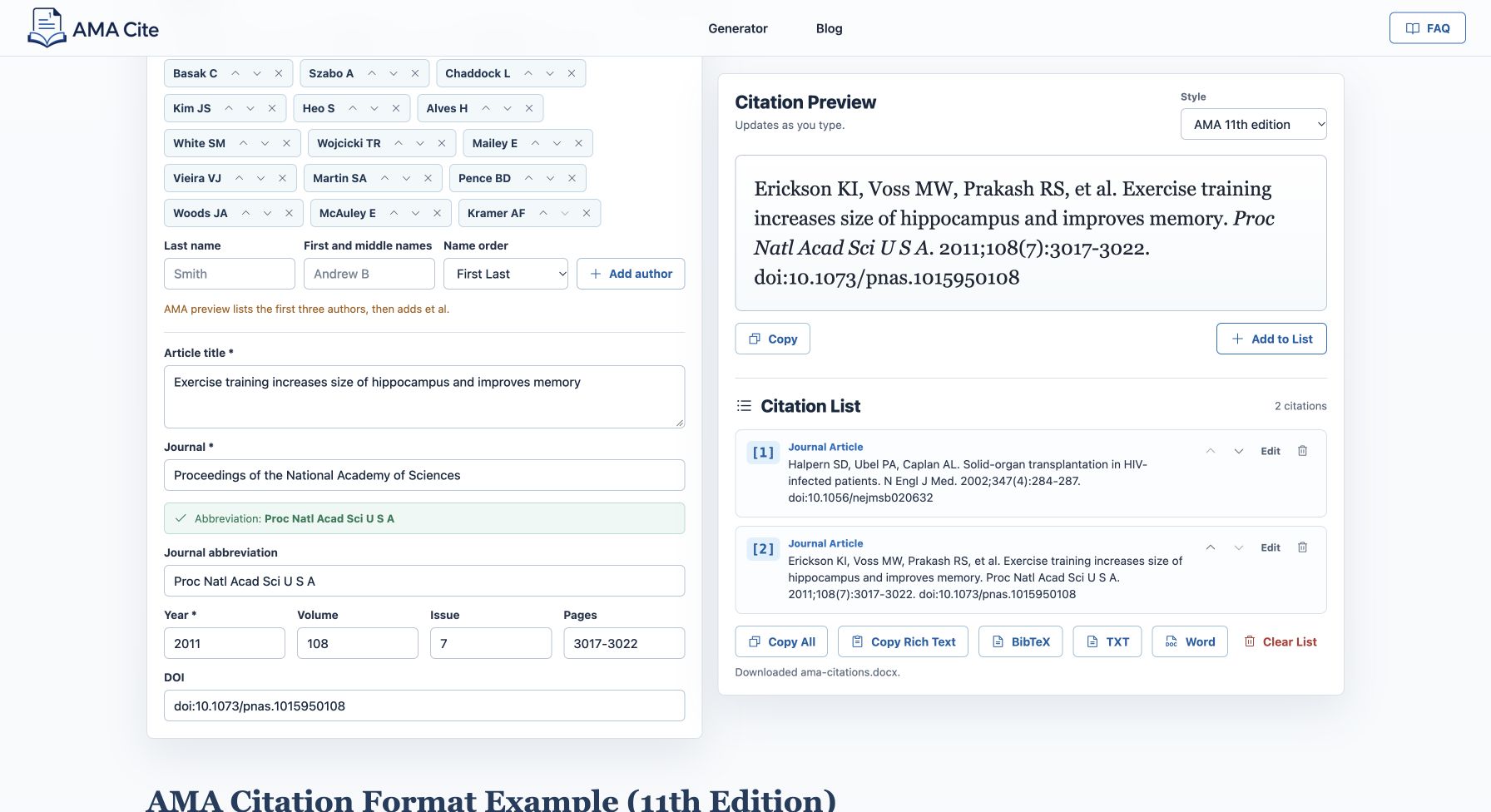
We used a local test copy of AMA Cite to import two journal records by DOI, add them to the citation list, and click Word. Halpern and colleagues’ transplant paper came first, followed by Erickson and colleagues’ exercise paper. Their PubMed identifiers are 12140307 and 21282661. The papers serve as bibliographic examples here; the practice sentences make no clinical claims.
Before exporting, we changed the imported transplant title to sentence case and replaced the imported PNAS abbreviation with Proc Natl Acad Sci U S A. Compare the metadata with the source record before adding each item. An AMA Word export carries the details you accepted, including any errors you leave in the form.
Inspect what the exported Word file contains
The downloaded file contains two reference paragraphs. Its labels are typed [1] and [2]. Inspection found no citation fields or automatic list numbering. The journal abbreviations have italic formatting; the author names and article titles do not. Each paragraph has 9 points of space after it and no directly assigned hanging indent.
These findings describe this tested export. Check your journal’s submission requirements and the appearance in your own Word installation. The document images below are cropped LibreOffice renderings of the DOCX copies. Word menu directions follow Microsoft’s documentation; we did not complete the desktop Word interaction.
| Element | Observed in the file | What to check next |
|---|---|---|
| Reference labels | Typed [1] and [2] | Match the requested label form and first-use order |
| Journal names | Italic text runs | Preserve italics when transferring the list |
| Paragraph layout | 9-point space after; no direct hanging indent | Apply your required spacing and indentation |
| Citation links | No active citation fields | Maintain the body-to-list mapping yourself |
Format a static reference list for your requirements
Open a copy of the DOCX and select the reference paragraphs. If transferring them into an existing manuscript, check the paste result before continuing. Pasting as plain text removes formatting you may need to restore, including the journal italics. Compare each entry with the exported original after applying the destination document’s styles.
When a hanging indent is required, Microsoft directs Windows users to Home, the Paragraph Settings dialog, and Indents and Spacing. Under Special, choose Hanging and set the By value. On macOS, use Format, then Paragraph, then the same Hanging option. Set paragraph spacing deliberately instead of inserting blank paragraphs between references.
Our corrected practice copy uses a half-inch hanging indent, single line spacing, and 6 points after each reference. It also changes the typed labels to 1. and 2. These are demonstration choices, not universal AMA layout requirements. Use the journal or course instructions to decide which settings and label form belong in your submission.
Test what happens when the first citation changes
In the raw export, Halpern is reference 1 and Erickson is reference 2. We reversed the two paragraphs in a separate copy without changing their labels. The result starts with [2] and then [1]. Nothing renumbered automatically. Moving text preserves the number characters attached to it.
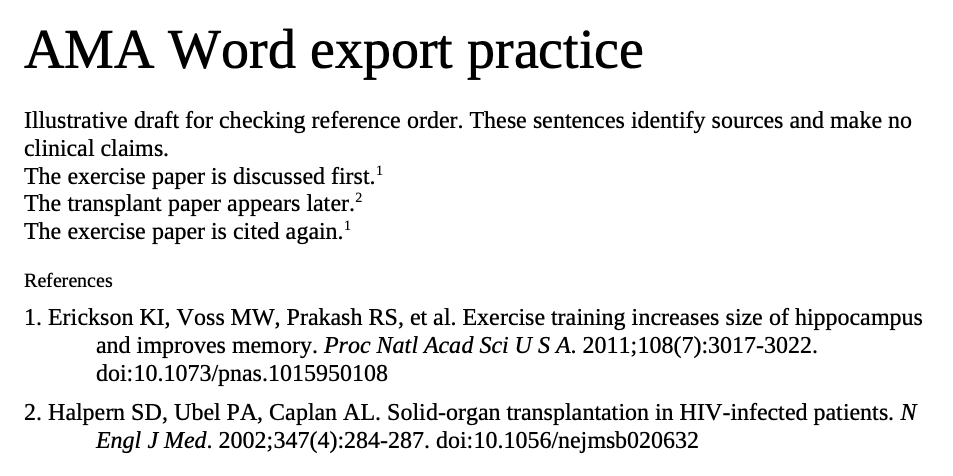
The corrected practice draft introduces the exercise paper first and the transplant paper second, then mentions the exercise paper again. Its body citation sequence is 1, 2, 1. The reference list therefore puts Erickson first and Halpern second. We changed both reference labels and checked each body citation against that new mapping.

Distinguish static text from active citation fields
Word’s own bibliography workflow begins with source records and citations inserted through References. Microsoft documents adding a source, inserting its citation, and generating a bibliography. Its Update Citations and Bibliography command updates that managed bibliography. An exported paragraph of reference text does not become a managed source merely because you paste it into Word.
Check the citation styles available in your version before relying on that workflow for AMA output. Microsoft’s general bibliography tutorial does not establish that every installation includes the AMA style you need. Review a generated example against your required format.
If you already use Zotero fields, keep them active while revisions continue. Zotero documents that Unlink Citations removes the field codes and prevents further automatic updates. Save a separate final copy before unlinking. The static export tested here has no such fields to unlink.
Check the final copy after manuscript edits
The corrected download includes the repeated superscript 1 and the reordered references. We edited its contents directly in the DOCX package and rendered the result for inspection. Compare the body numbers with the reference labels, then select the reference paragraphs to inspect their spacing and indentation.
For your own delivery, follow every citation from the body to its reference. Recheck repeated sources, journal italics, DOI text, and paragraph breaks. After the last edit, save the Word file and inspect any required PDF as well. A reference that wraps correctly in one copy can break differently in another.
When the draft moves into Google Docs
Check how pasted references and superscripts behave in Docs before collaborators revise the draft. A manual list and a connected manager require different review steps.
Prepare your own checked export
Once the source details and first-use order are settled, build your list and export a working copy. Keep the source records available for the final comparison, especially after adding, removing, or moving a citation.
Check the Zotero style and library record
If a connected citation has the wrong author formatting, check the item’s creator fields and selected AMA style before editing its output. Our Zotero guide includes an actual author correction and refreshed preview.