
Choose who maintains the citation numbers
AMA Citations in Google Docs With Manual and Connected Workflows
Follow a two-source Google Docs test from formatted paste to superscripts, an accepted suggestion, and a checked Word export. Keep manual references and connected citations distinct.
Google Docs can hold a correctly formatted AMA reference list even when its citation sidebar offers no AMA style. We checked the sidebar, pasted two references into a blank test document, applied a superscript, and reviewed a suggested edit before exporting. The numbers and journal italics survived that test. Keeping them correct during revision still requires a clear choice about who maintains the citations.
Check what the native citation sidebar supports
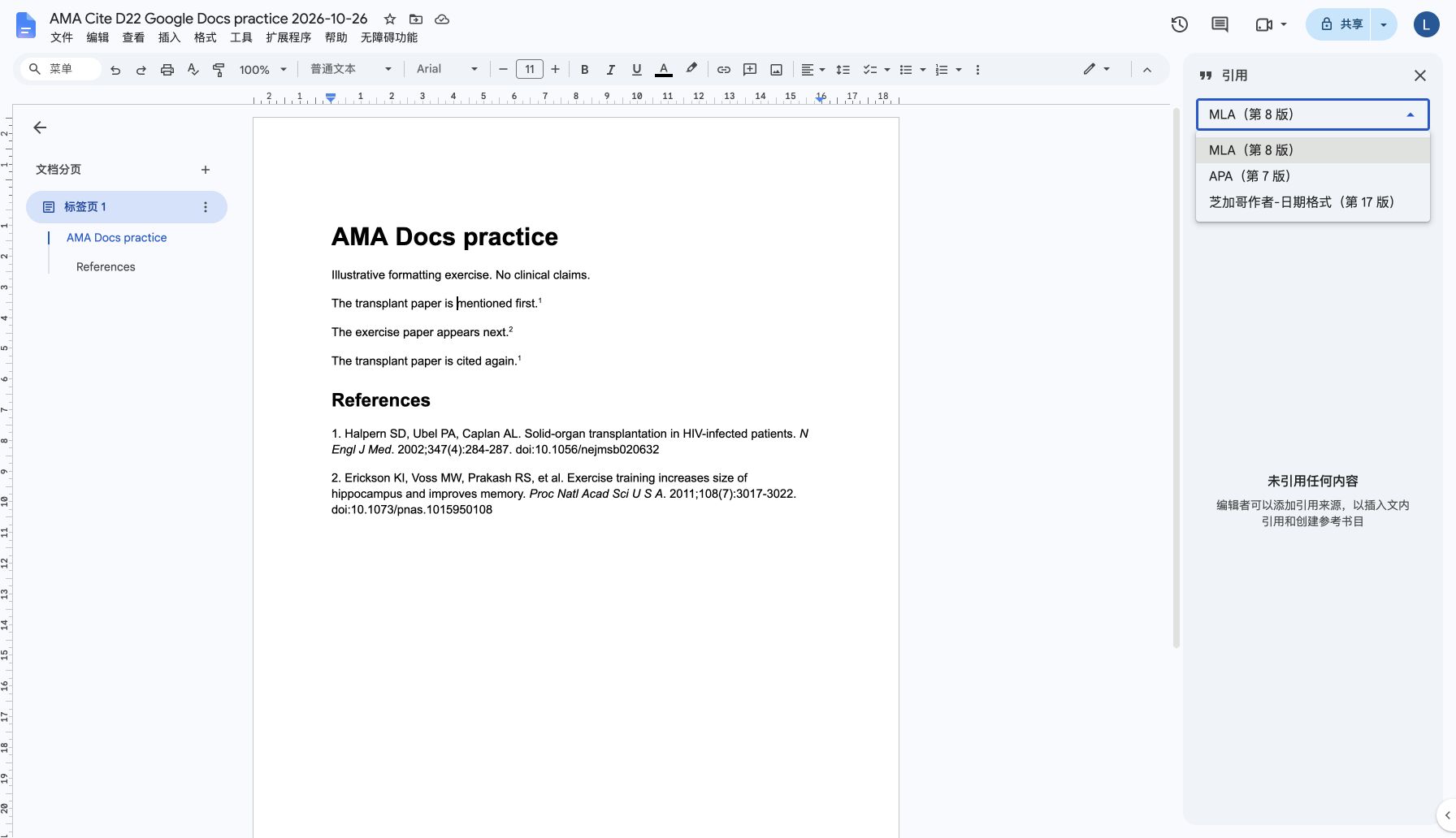
Google’s current help lists MLA eighth edition, APA seventh edition, and Chicago author-date seventeenth edition. We found the same three choices under Tools, then Citations, in our Chrome session. AMA was absent. Selecting APA will produce an author-date citation; it will not supply the AMA numbering your assignment requires.
After pasting our manual list, the sidebar still reported no cited sources. The pasted text had not become a set of Google citation records. That gives you a useful first check when opening a shared draft. Ask how the references were inserted before trying to update them through a sidebar or an extension.
Use a manual workflow for a small reference list
Our practice document uses the two checked journal records from the Word guide. Halpern and colleagues’ transplant paper is reference 1; Erickson and colleagues’ exercise paper is reference 2. Their PubMed identifiers are 12140307 and 21282661. The practice sentences identify the papers without making clinical claims about their findings.
We prepared a formatted list from the checked export and pasted it into a blank Google Doc. Both journal abbreviations retained their italics. If your own paste loses formatting, compare the result with the original list and restore the italics. Review titles, years, and identifiers before spending time on paragraph appearance.
For a typed body number, select just the digit and choose Format, Text, then Superscript. We applied that command to the first 1. The other two body numbers arrived as superscript text in the formatted paste. The exported file later confirmed three genuine superscript runs in the order 1, 2, 1.
| Appearance in the practice draft | Body number | Reference to check |
|---|---|---|
| First mention of the transplant paper | 1 | Halpern, Ubel, and Caplan; PMID 12140307 |
| First mention of the exercise paper | 2 | Erickson and colleagues; PMID 21282661 |
| Later mention of the transplant paper | 1 | Reuse the first entry; add no duplicate |
Review a suggestion before checking the citations
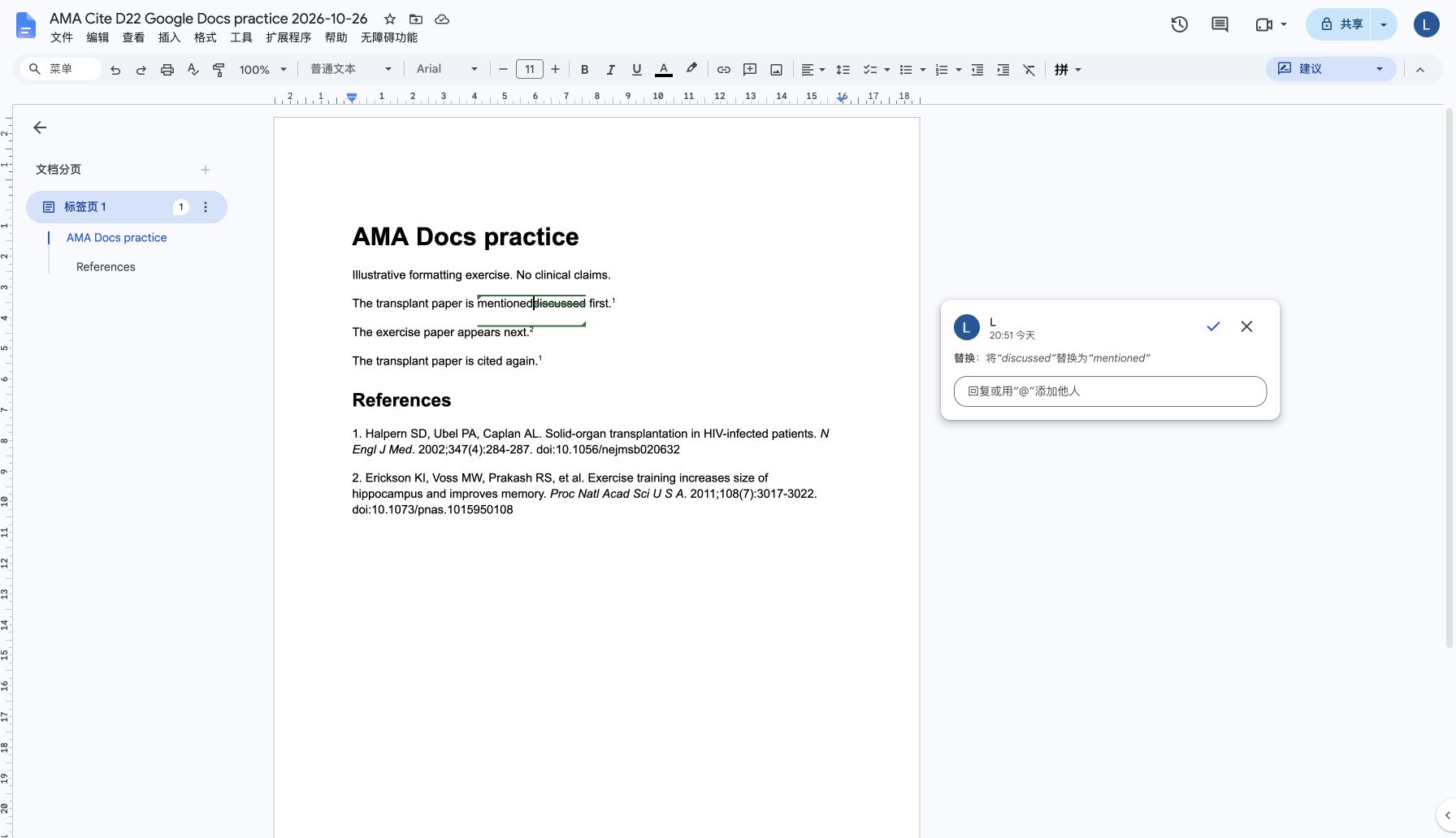
We switched to Suggesting mode and proposed replacing discussed with mentioned in the first practice sentence. Google Docs displayed the insertion and deletion together, with controls to accept or reject the change. Accepting it left the sentence with mentioned and kept its superscript 1 attached.
We rehearsed the suggestion controls in a single account. Google documents that people with commenting or editing permission can suggest changes. In a shared manuscript, agree who will maintain the final reference sequence and who will review changes that move or remove cited sentences.
A wording suggestion can leave the citation mapping intact, as ours did. Moving a passage or introducing a different source needs another check. Read the accepted sentence and its cited reference together. Comments about a citation can explain a proposed change, but the accepted manuscript still needs the correct number and source.
Understand the connected-manager option
Zotero offers a separate connected workflow through its browser Connector and desktop application. It can insert citations and build a bibliography; Refresh applies changes to library metadata. We reviewed its official documentation for this comparison. Our manual test did not install, authorize, or exercise Zotero.
Zotero recommends that document editors use the Connector and avoid editing citations simultaneously. Cutting and pasting an active citation without the Connector can unlink it. A group library lets collaborators edit shared source metadata; an item cited from a personal library remains under that person’s metadata control.
For submission, Zotero advises making a copy and unlinking citations in that copy before downloading. Keep the connected original for later revisions. Correct source data in the library and refresh while the connections are active. Manually changing a managed bibliography can be overwritten on refresh.
Check the exported copy after review
After accepting our suggestion, we exported a Word copy from Google Docs and inspected its contents and rendered page. It contained mentioned, the body superscripts 1, 2, 1, and both italic journal abbreviations. There were no pending insertions or deletions in the export. The manual reference text contained no citation field instructions.
For your own handoff, open File, choose Download, and select the requested file type. Google documents that workflow for saving a copy. Inspect the file you will actually send, including any required PDF. Check repeated numbers, journal italics, and whether the agreed wording appears.
Build the list your draft needs
A short, stable draft can be manageable with a checked manual list. Frequent restructuring makes connected citations worth considering, provided the collaborators use the same workflow. AMA Cite supplies reference text you can review and transfer into Docs. Copying that text does not create a native Google Docs integration or an automatically updating bibliography.
Check the Zotero style and library record
If a connected citation has the wrong author formatting, check the item’s creator fields and selected AMA style before editing its output. Our Zotero guide includes an actual author correction and refreshed preview.